
How to Create a Quiz on Wayground | For Teachers
Creating an online quiz in 2026 is one of the best ways to make learning more interactive, engaging, and student-centered. With Wayground (formerly Quizizz), teachers and educators can easily design quizzes, assessments, and interactive lessons without needing premium access.
In this complete guide, you’ll learn how to create a quiz step by step on Wayground, from signing up to sharing your quiz with students. Whether you’re a beginner or an experienced teacher, this tutorial will help you use the platform effectively and students can easily join my quiz after quiz creation.
Why Use Wayground to Create Quizzes?
Wayground is a powerful digital learning platform designed for modern classrooms. It helps teachers:
Because of its flexibility and ease of use, Wayground is ideal for schools, tutors, and online educators.
Methods to Create a Quiz on Wayground
Step 1: Create a Free Teacher Account on Wayground
Before creating a quiz, you need a teacher account.
How to Sign Up
- Visit wayground.com
- Click Sign Up as a Teacher
- Log in using your Google account
- Select your purpose (School or Personal Use)
- Choose Teacher
- Enter your school name (optional)
- Select grade level and subject
- Answer whether you’ve used Wayground before
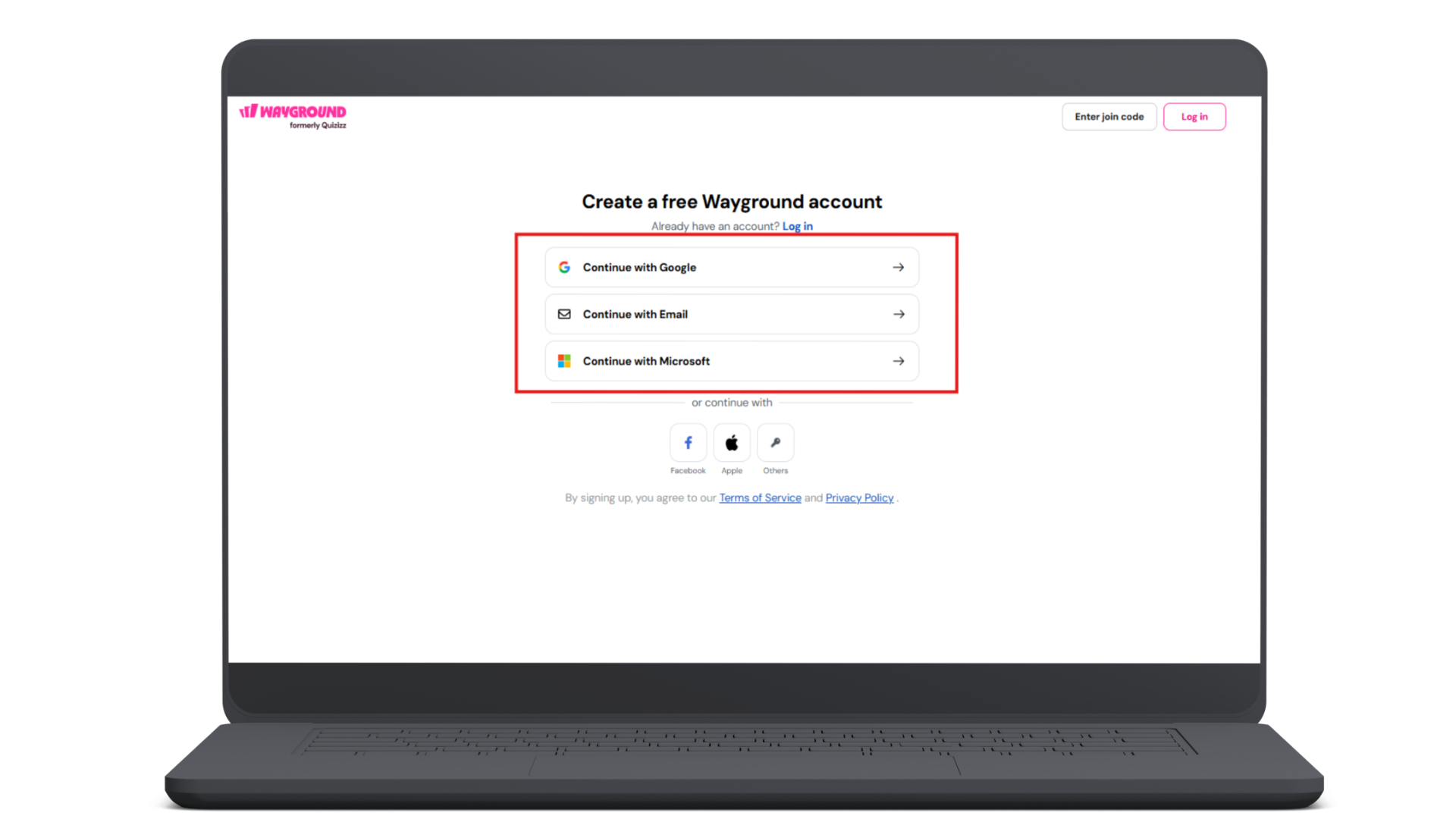
After completing these steps, you’ll get access to your teacher dashboard.
Tip: If you’re using a personal account, guide your students to sign up as learners so they can access your content later.
Step 2: Open the Quiz Creator
Once you’re logged in:
- Go to your dashboard
- Click Create
- Select Assessment
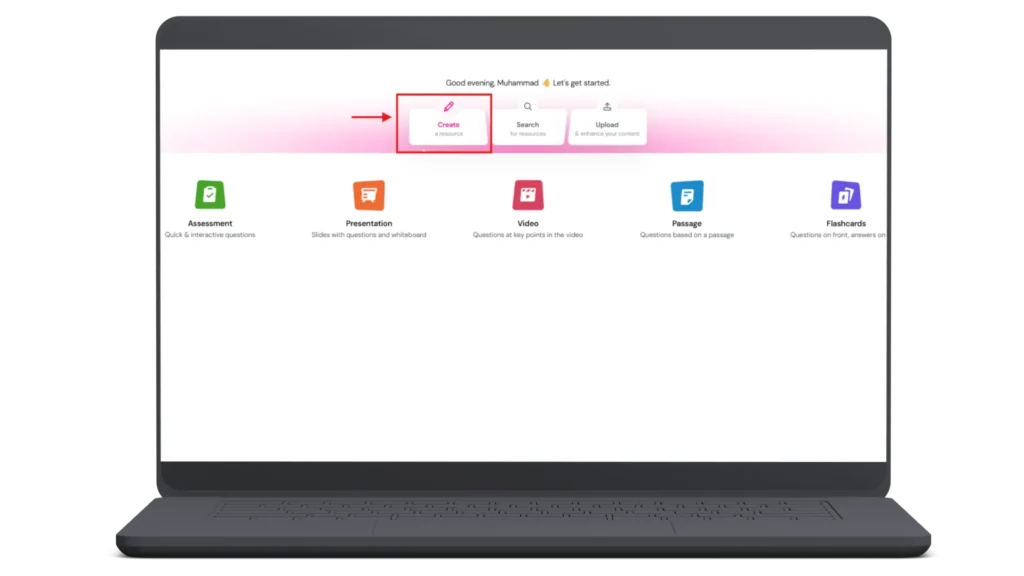
This opens the quiz editor, where you can start adding questions.
Step 3: Add Questions to Your Quiz
Wayground allows multiple ways to create questions.
Methods to Add Questions
You can:
Supported Question Types
You can choose from:
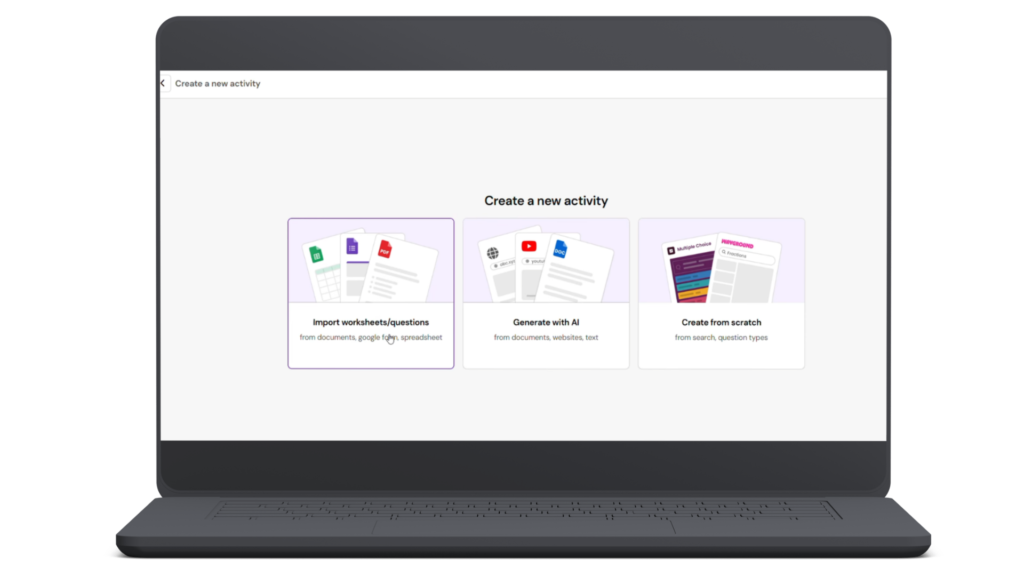
Adding visuals makes your quiz more engaging and easier to understand.
Step 4: Set Points and Time Limits
After adding your questions, configure scoring and timing.
Important Settings
For each question, set:
These settings help:
Balanced timing keeps students motivated without pressure.
Step 5: Customize Quiz Settings
Now, move to the Settings tab. Here, you can:
A clear title and relevant image improve organization and professionalism.
Preview Before Publishing
Always click Preview to see how your quiz looks from a student’s perspective. This helps you catch errors and improve layout.
Step 6: Share Your Quiz With Students
Once your quiz is ready, it’s time to share it. Wayground offers two main options:
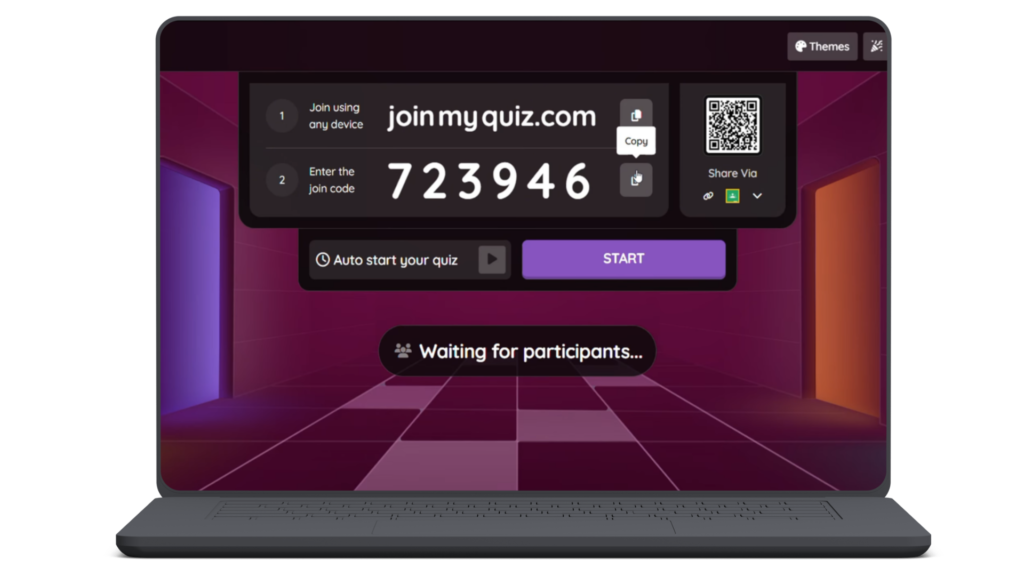
Option 1: Play (Live Quiz Mode)
Use this for real-time classroom sessions.
When you click Play, you’ll get:
Students can use any of these to join instantly.
Best for:
Option 2: Assign (Homework Mode)
Use this for asynchronous learning.
When you click Assign, you can:
This is perfect for homework and remote learning.
Step 7: Understand Free Account Limitations
If you’re using a free account, there may be some feature restrictions. However, you can still:
Free users can run effective quizzes without upgrading.
Step 8: Create Interactive Lessons Using Passages
Wayground also allows you to build lessons using the Passage feature.
How to Use Passage Mode
- Upload a reading file or type content
- Click Generate Questions with AI
- Edit generated questions
- Add images or GIFs
- Save and preview
This feature is great for comprehension tests, reading assignments, and topic-based lessons.
Step 9: Choose Session Modes
When publishing your lesson or quiz, you can select between two modes.
Classic Mode
Best for fun and engagement.
Features include:
Ideal for practice and revision sessions.
Test Mode
Best for formal assessments.
Features include:
Use this mode for quizzes, tests, and evaluations.
Step 10: Monitor Student Progress in Real Time
During live sessions, teachers can view:
This real-time dashboard helps you guide students and adjust lessons instantly. On the student side, learners see a clean and interactive interface that keeps them focused and motivated.
Best Practices for Creating Effective Quizzes
To get the best results, follow these tips:
1. Keep Questions Clear
Avoid confusing language. Use simple and direct wording.
2. Use Visuals
Add images, icons, or emojis to improve understanding.
3. Balance Difficulty
Mix easy, medium, and challenging questions.
4. Set Realistic Timers
Don’t rush students with very short time limits.
5. Preview Every Quiz
Always test before sharing.
Benefits of Using Wayground for Quiz Creation
Using Wayground helps teachers:
It turns traditional quizzes into interactive learning experiences.
Frequently Asked Questions
Conclusion
Learning how to create a quiz on Wayground is simple, even for beginners. From account creation to sharing quizzes, every step is designed to be user-friendly and efficient. With features like live play, homework assignments, AI-generated questions, and real-time tracking, Wayground empowers teachers to deliver engaging and effective lessons.